
Anyone who wants to send in their All in One PC (AIO PC) for repair or return faces the same challenge as many laptop owners: one wrong move when packing – and the damage is greater than the original defect. Especially with all-in-one systems, where the computer and display are combined in one housing, shock-proof and pressure-resistant packaging is crucial. We currently have a “broken foot” of an AIO PC in notebook technology. We assume that it was packed incorrectly.
In this article, we will show you how to pack your All in One PC safely for transport in order to avoid transport damage and avoid liability exclusions of the shipping service providers.
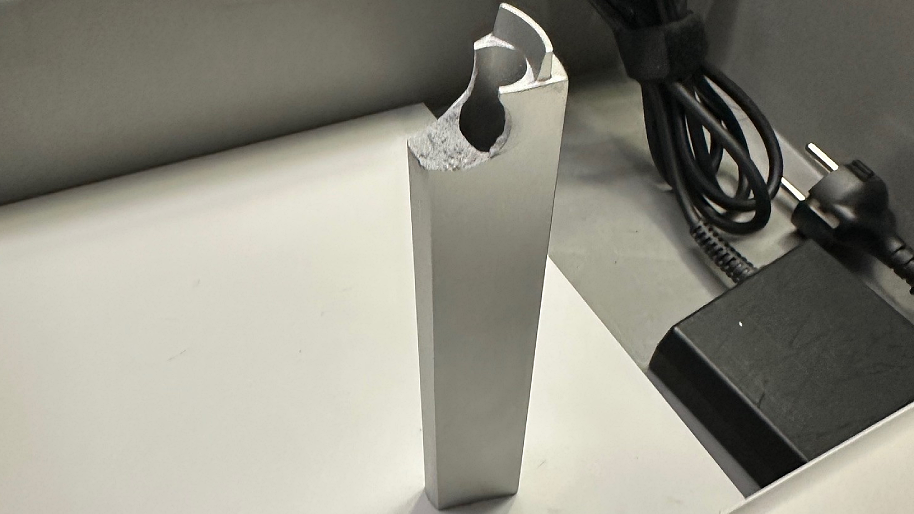
Table of Contents
Why is transport damage so common?
Parcel services such as DHL, DPD, UPS and Hermes stipulate that every parcel must be able to withstand a drop height of up to 1 meter without damage.
That means: Both the packaging and the contents must be protected in such a way that no damage occurs during normal sorting and transport loads. If there is insufficient shock, break or pressure protection, the service providers generally exclude their liability for transport damage. Before any settlement, it is checked whether the packaging meets the requirements. If this is not the case, a replacement is usually not granted.
Especially with all-in-one PCs, the display and display corners, the stand and the rear panel are particularly sensitive. Loose air cushions or cardboard boxes that are too thin do not offer sufficient protection because the device can move during transport – pressure marks, housing breaks and screen damage are often the result
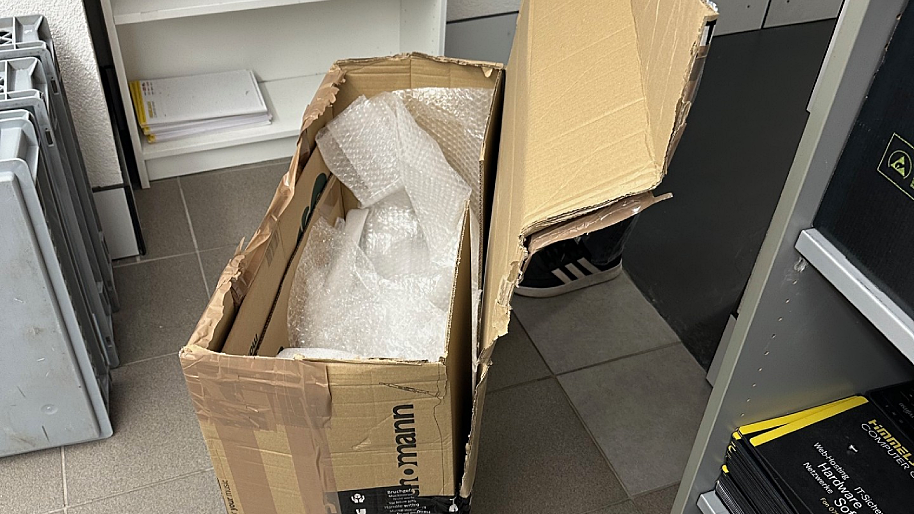
Packaging of the transport damage
Here is the packaging that led to the transport damage of the all-in-one PC (broken foot). It is clear that too little packaging material was used here + missing outer box.
Preparation - pack the device cleanly and safely
Before you pack your all-in-one PC:
- Shut down the device completely and disconnect all cables and peripherals.
- Secure the display with a soft intermediate layer – e.g. a thin and very soft foam
- Remove the stand, if possible, and pack the screen and foot separately.
- Pack the accessories incl. stand in such a way that they cannot damage the display etc.
- Basic rule – it is better to leave a little more space between the components
The right box and the best padding
The all-in-one PC must be padded all around – especially the corners!
- Use a stable, double-walled cardboard box that is sufficiently larger than the device.
- Pad all around – ideally with Styrofoam molded parts or solid foam padding that securely fixes the device and foot.
- The device should not have any freedom of movement in the box.
- Heavy devices need stronger outer walls – use two nested boxes if necessary (double packaging).
- Do not ship two all-in-one PCs in one box – this often leads to total damage and loss of insurance cover.
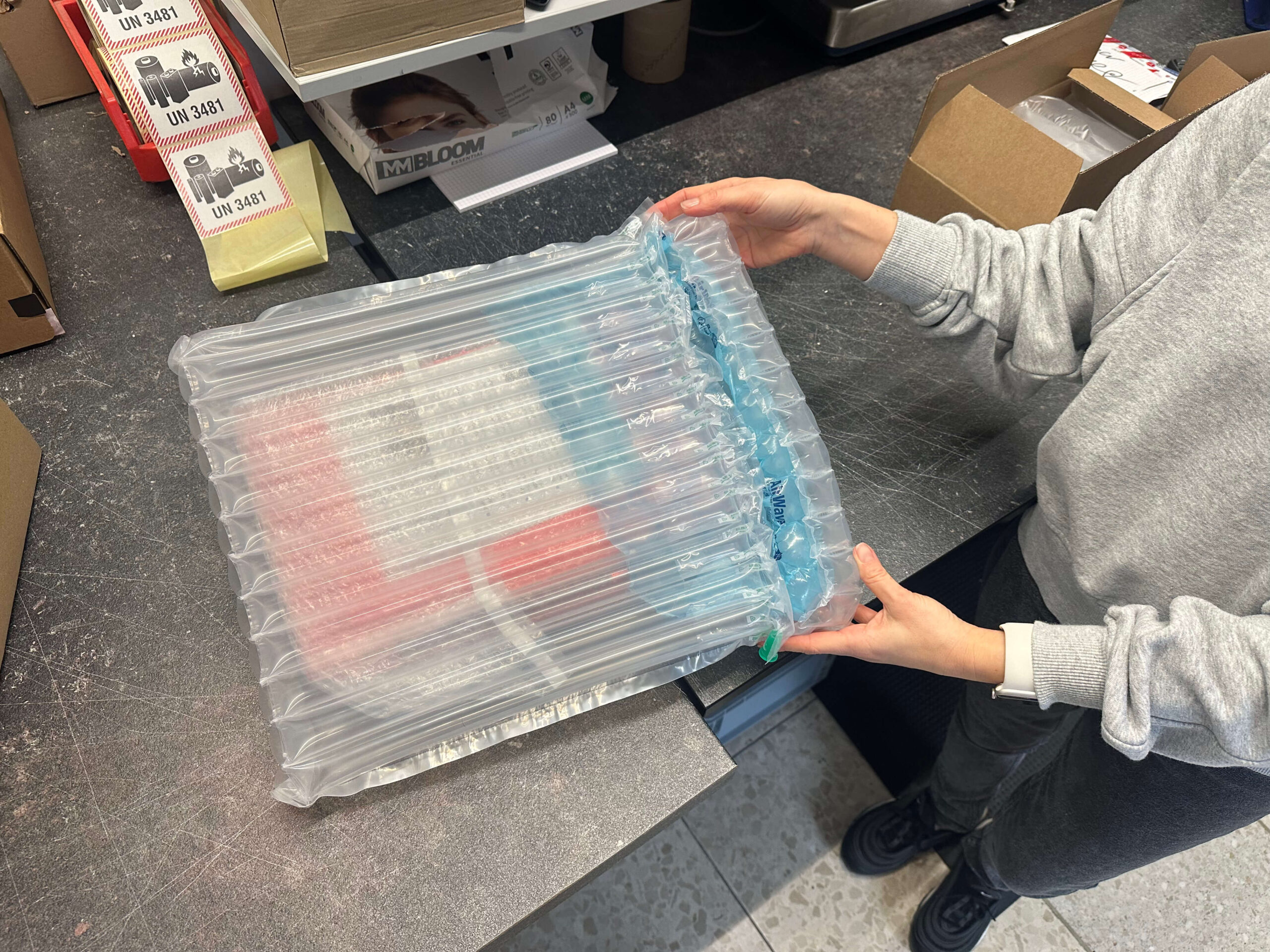
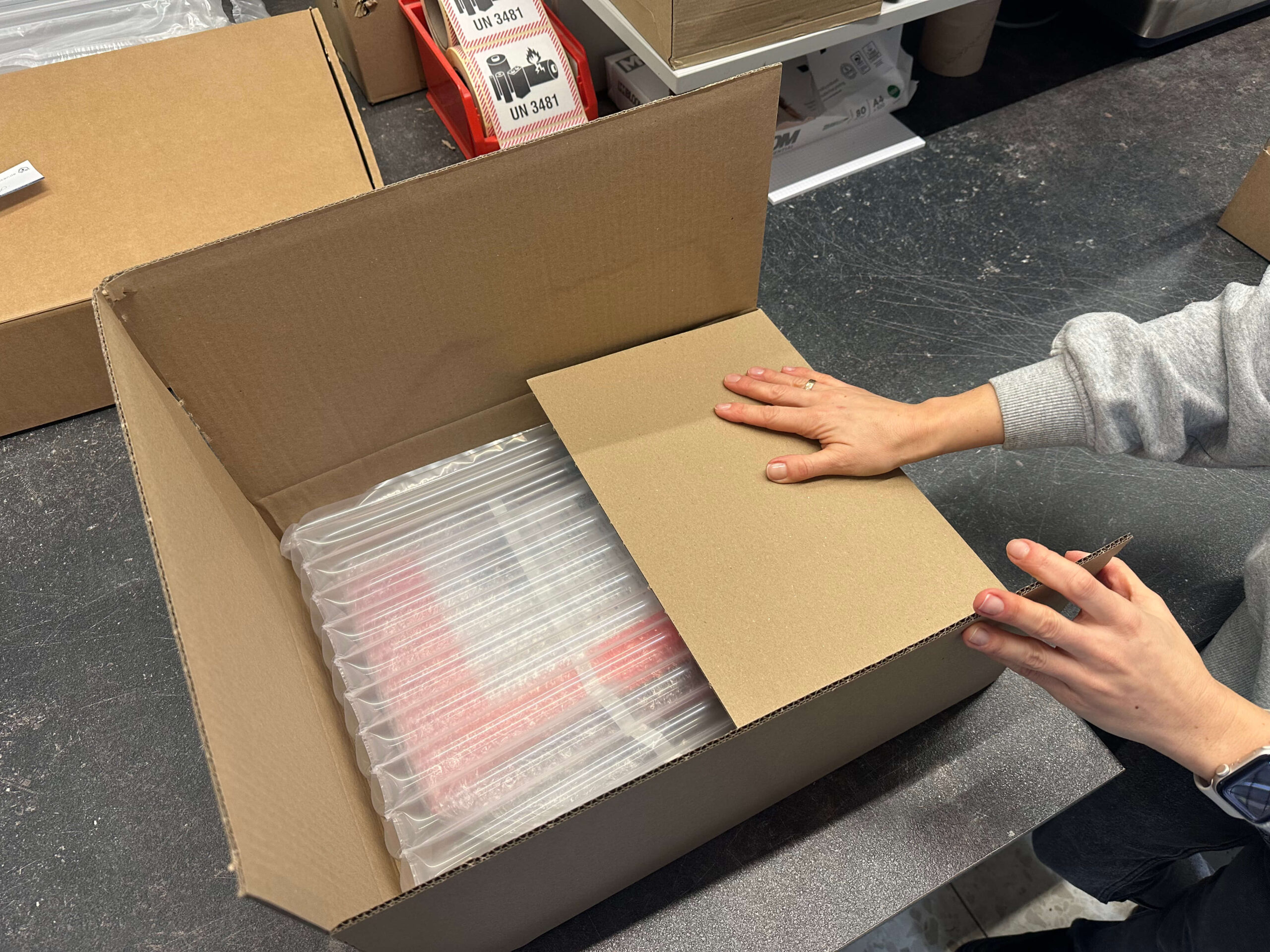
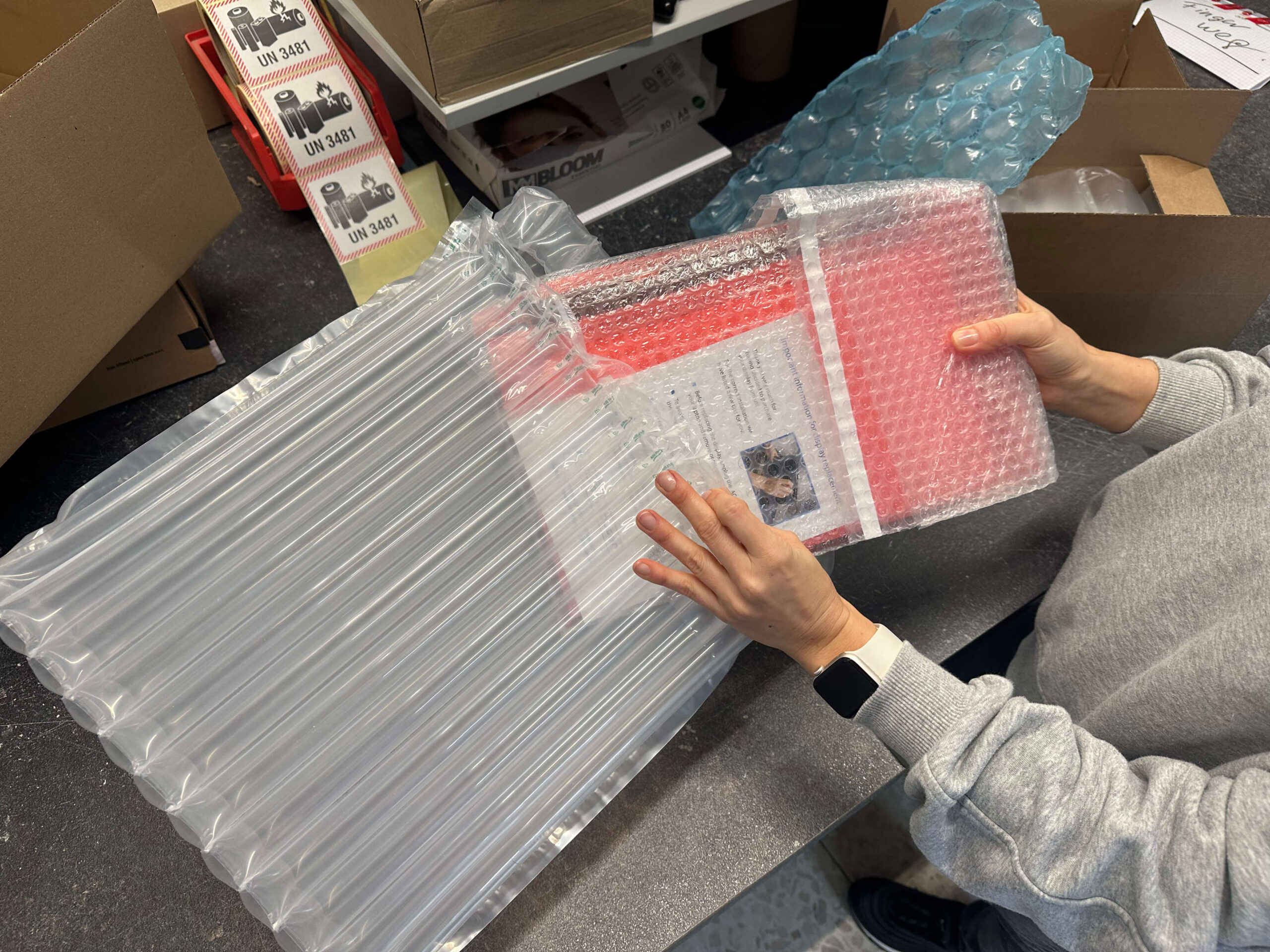
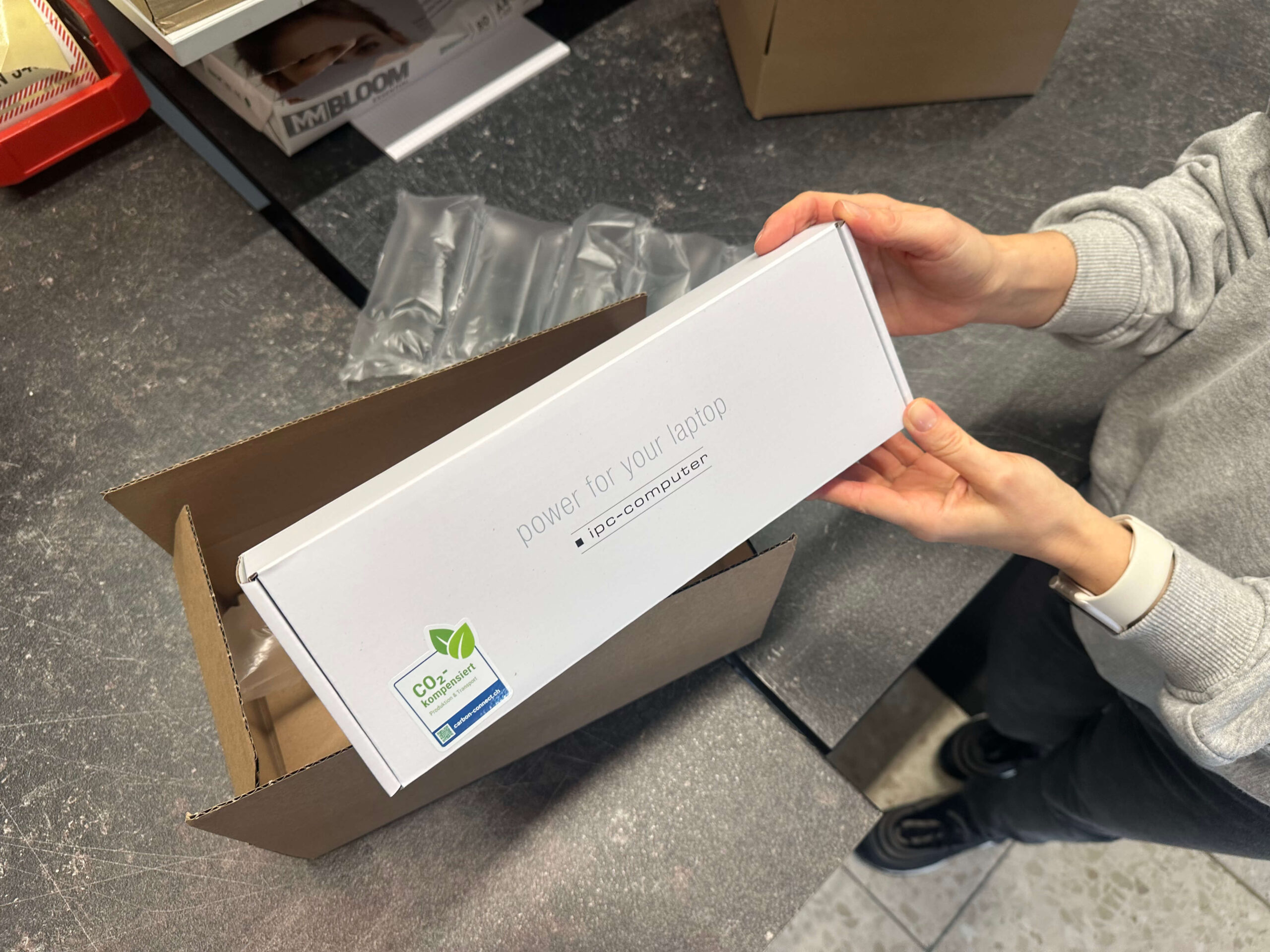
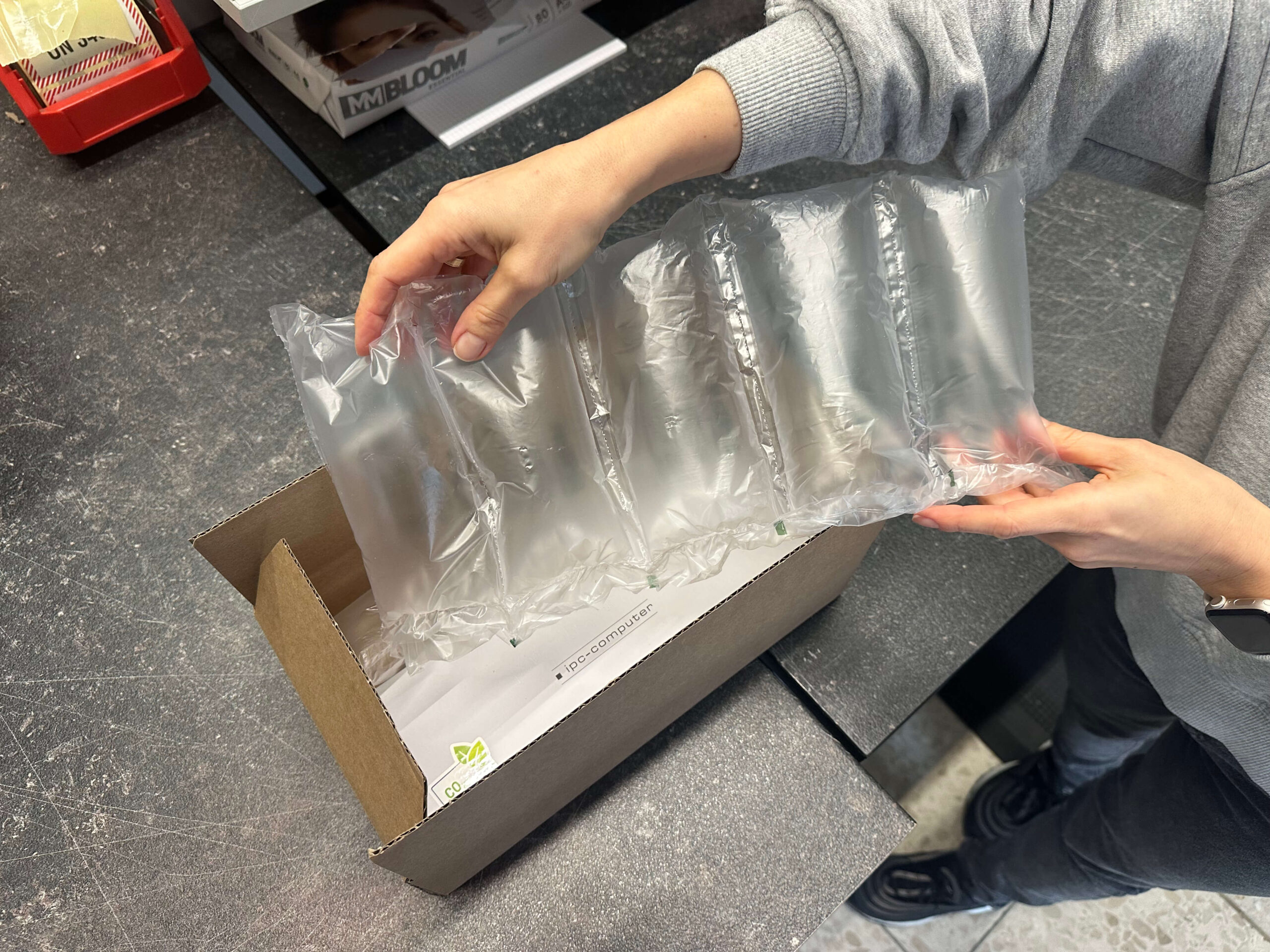
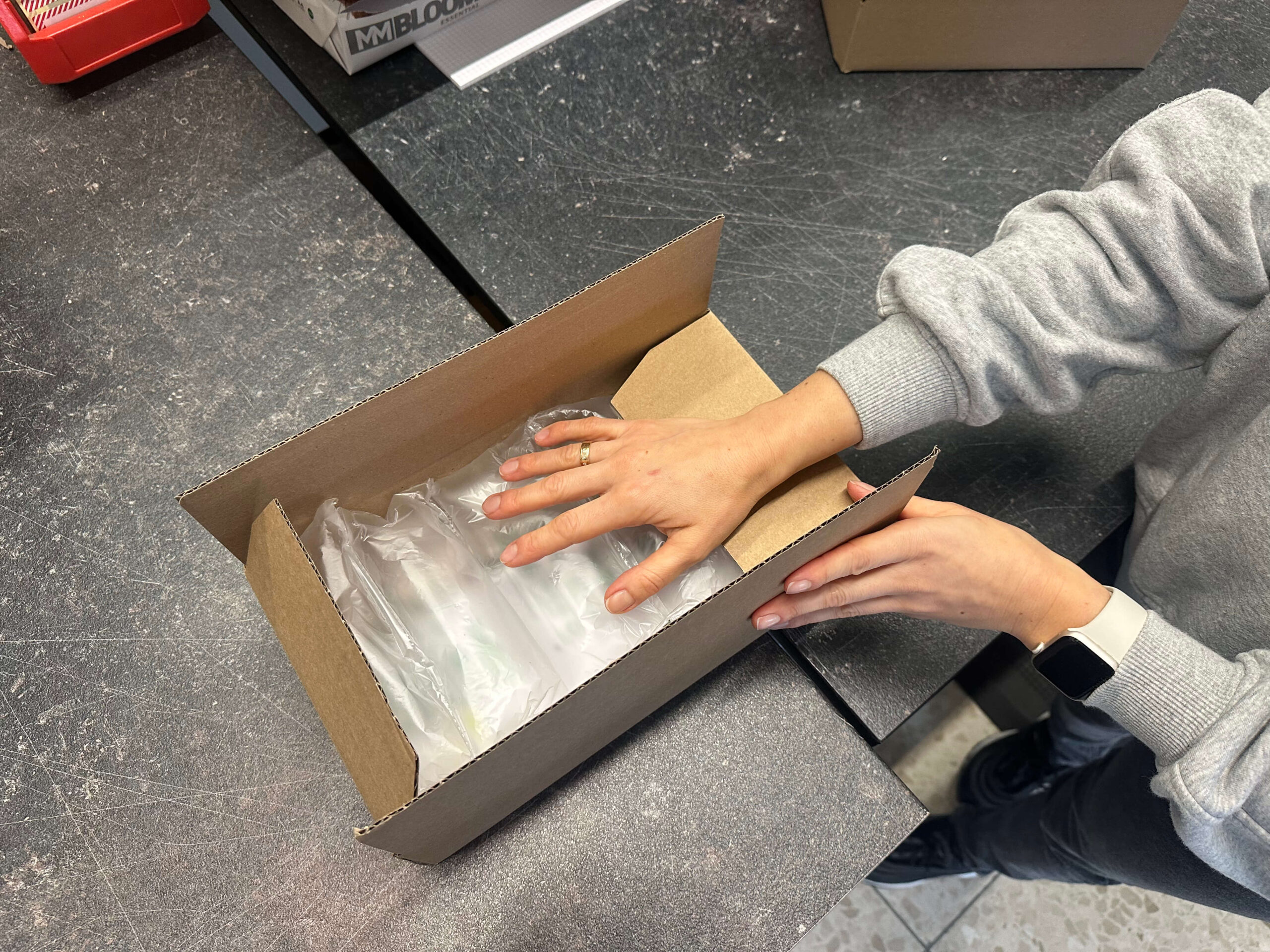
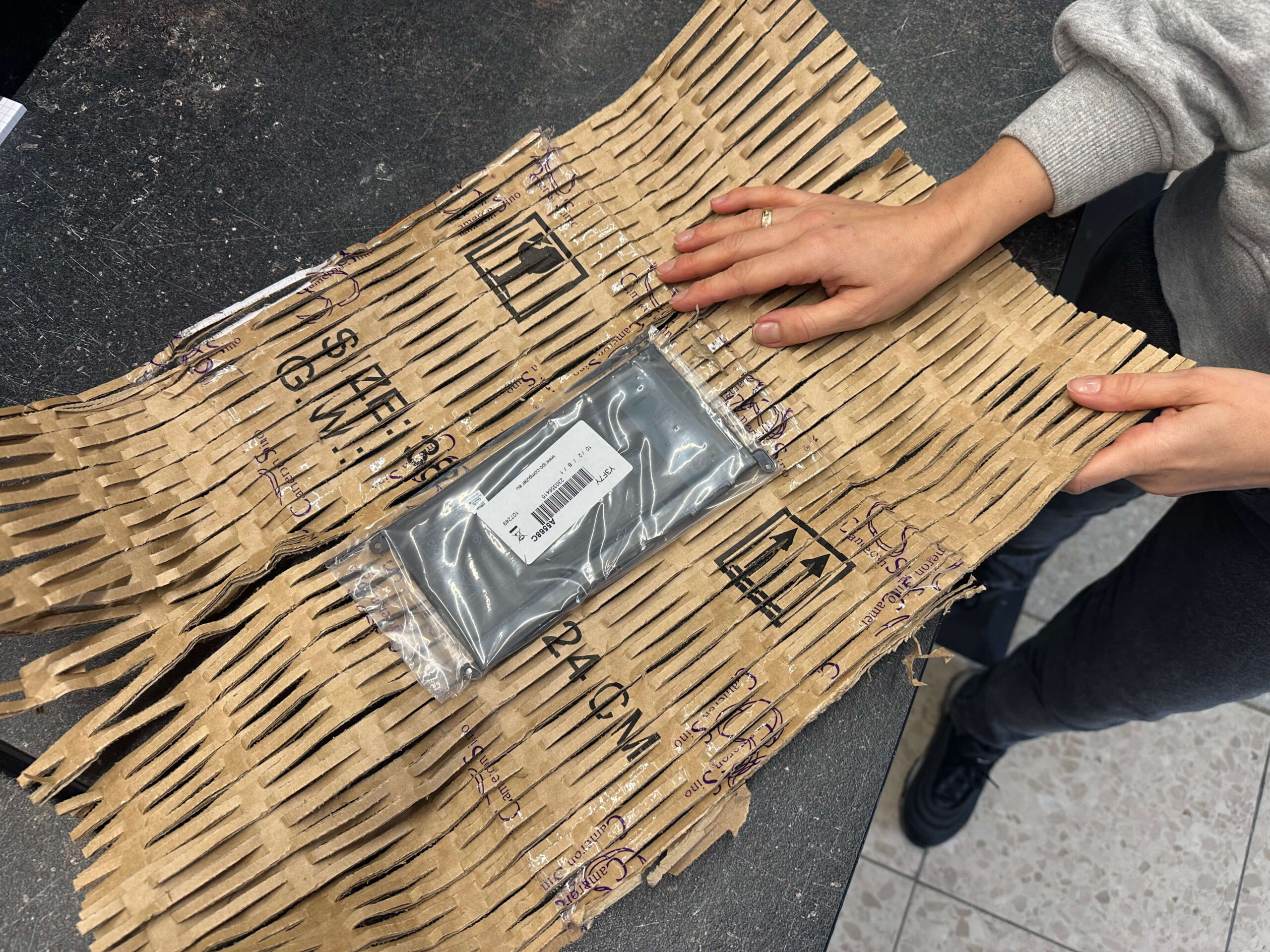
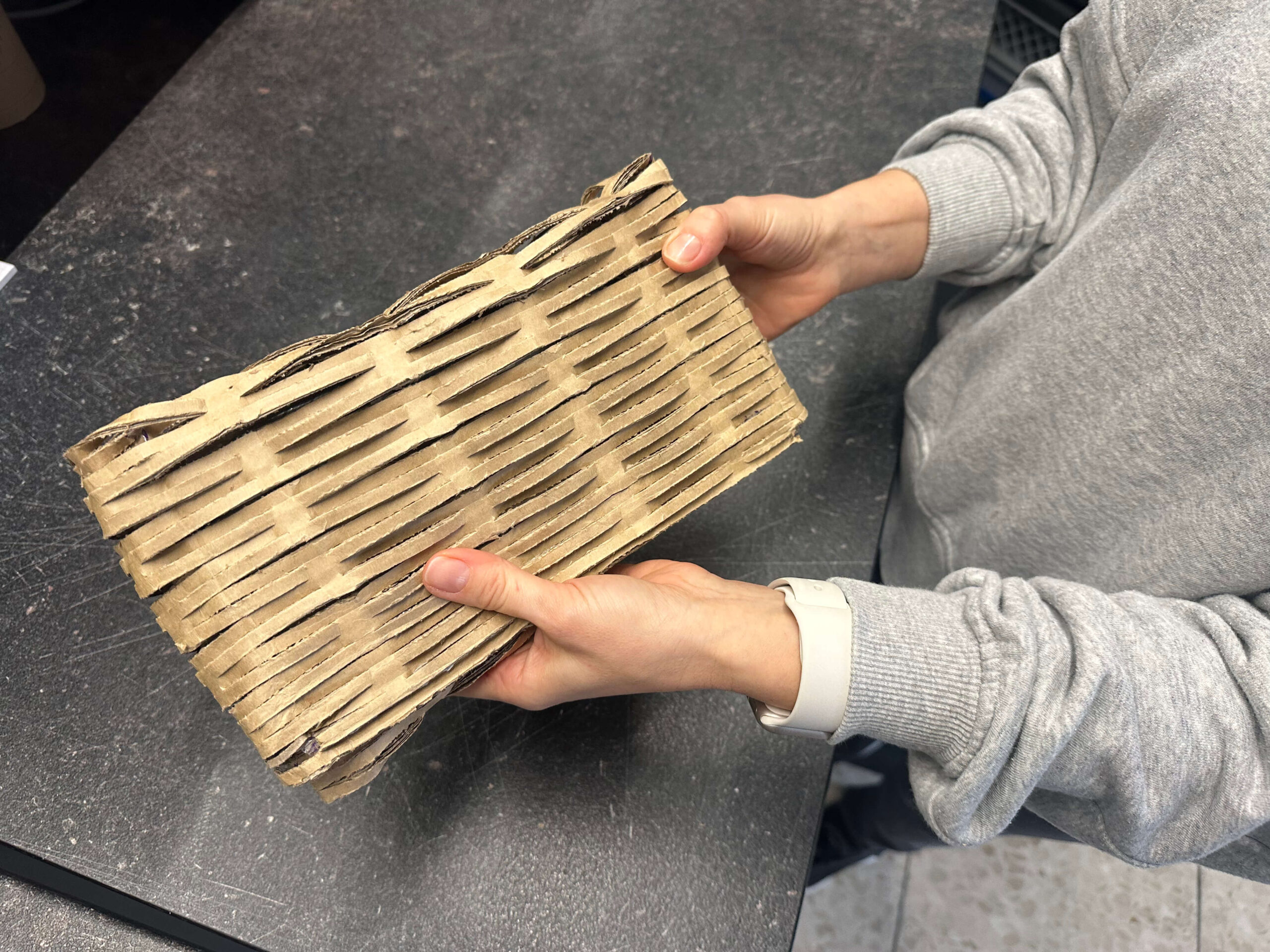
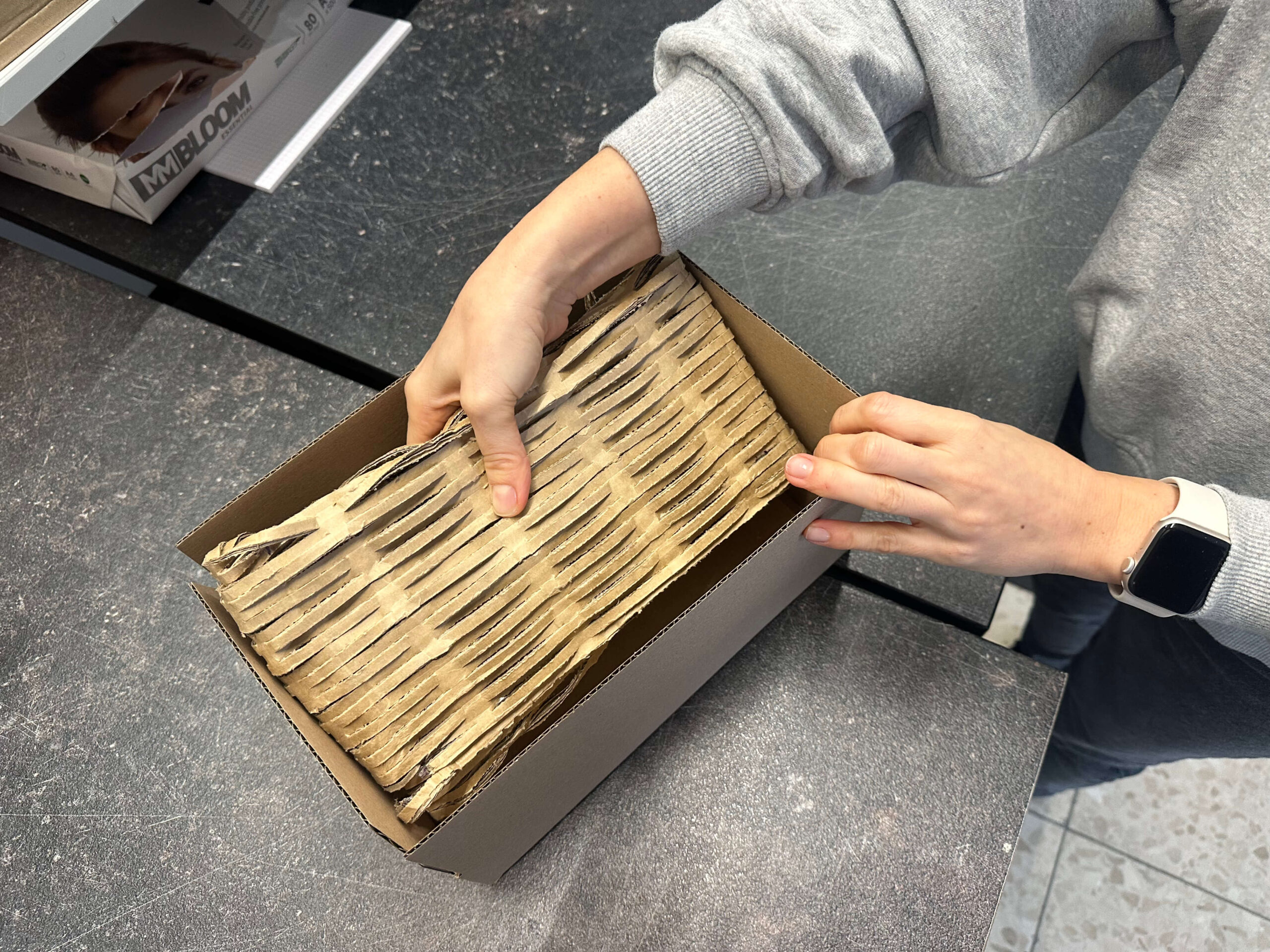
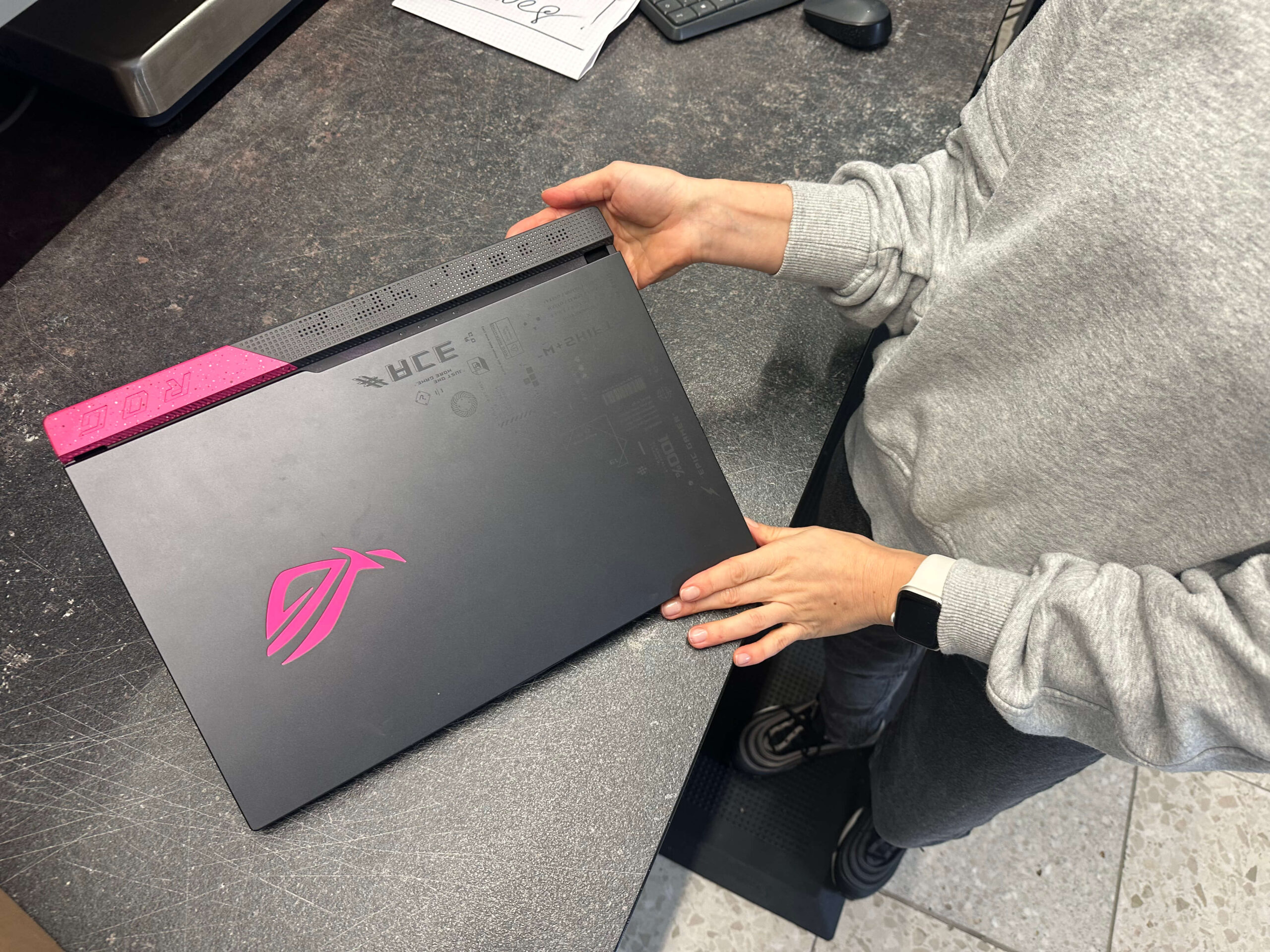
Packaging processes at IPC-Computer for displays and spare parts
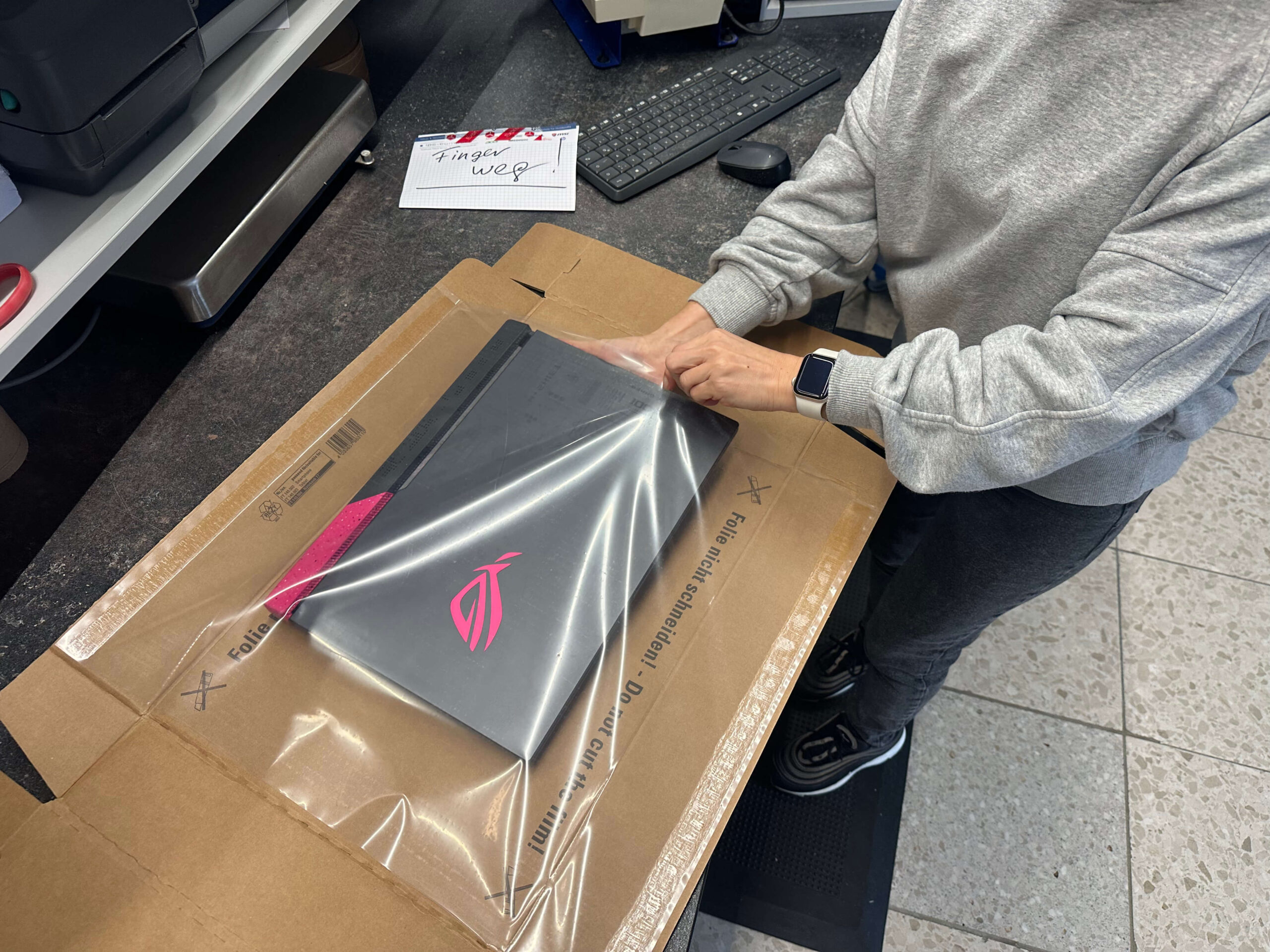
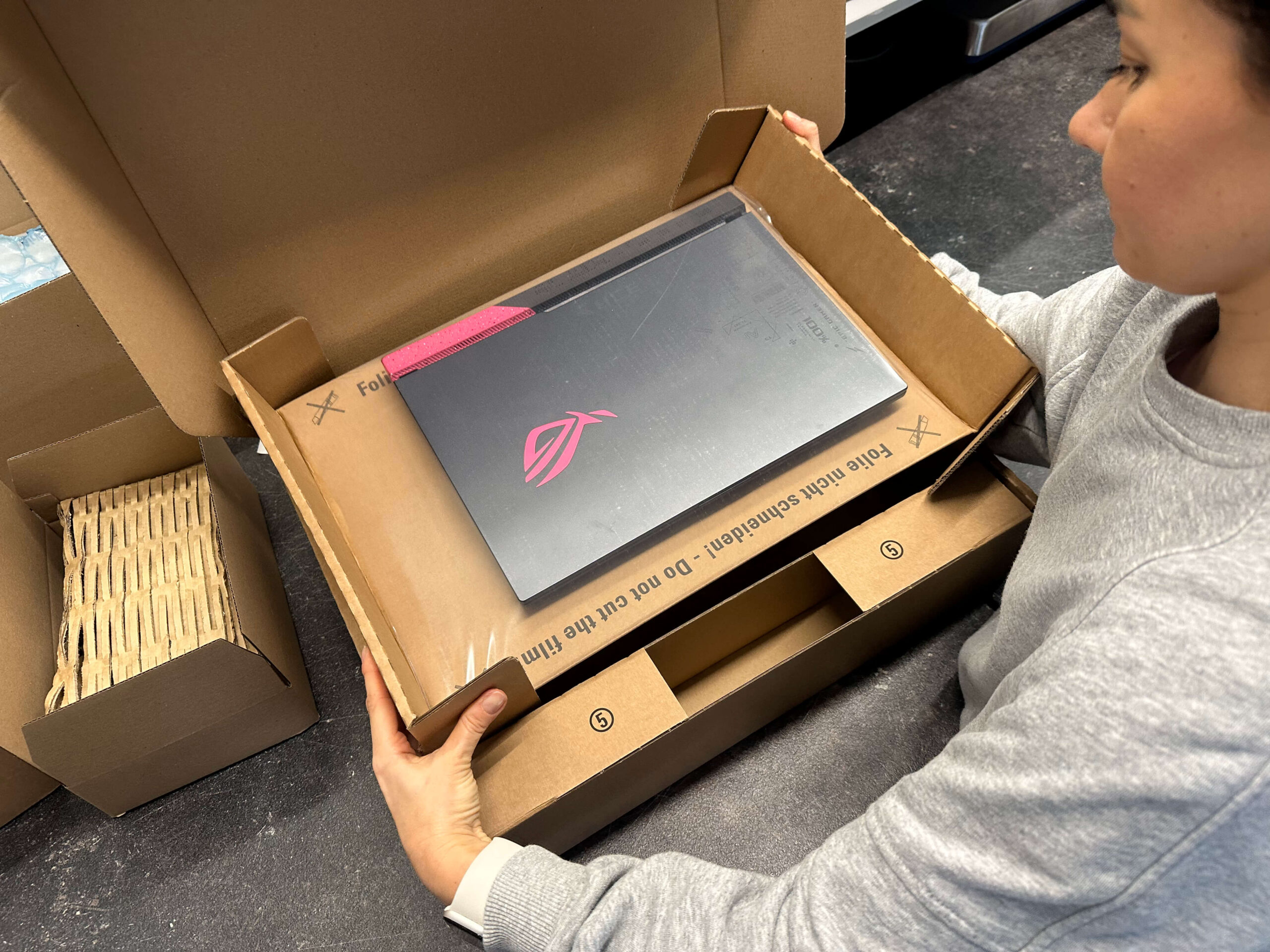
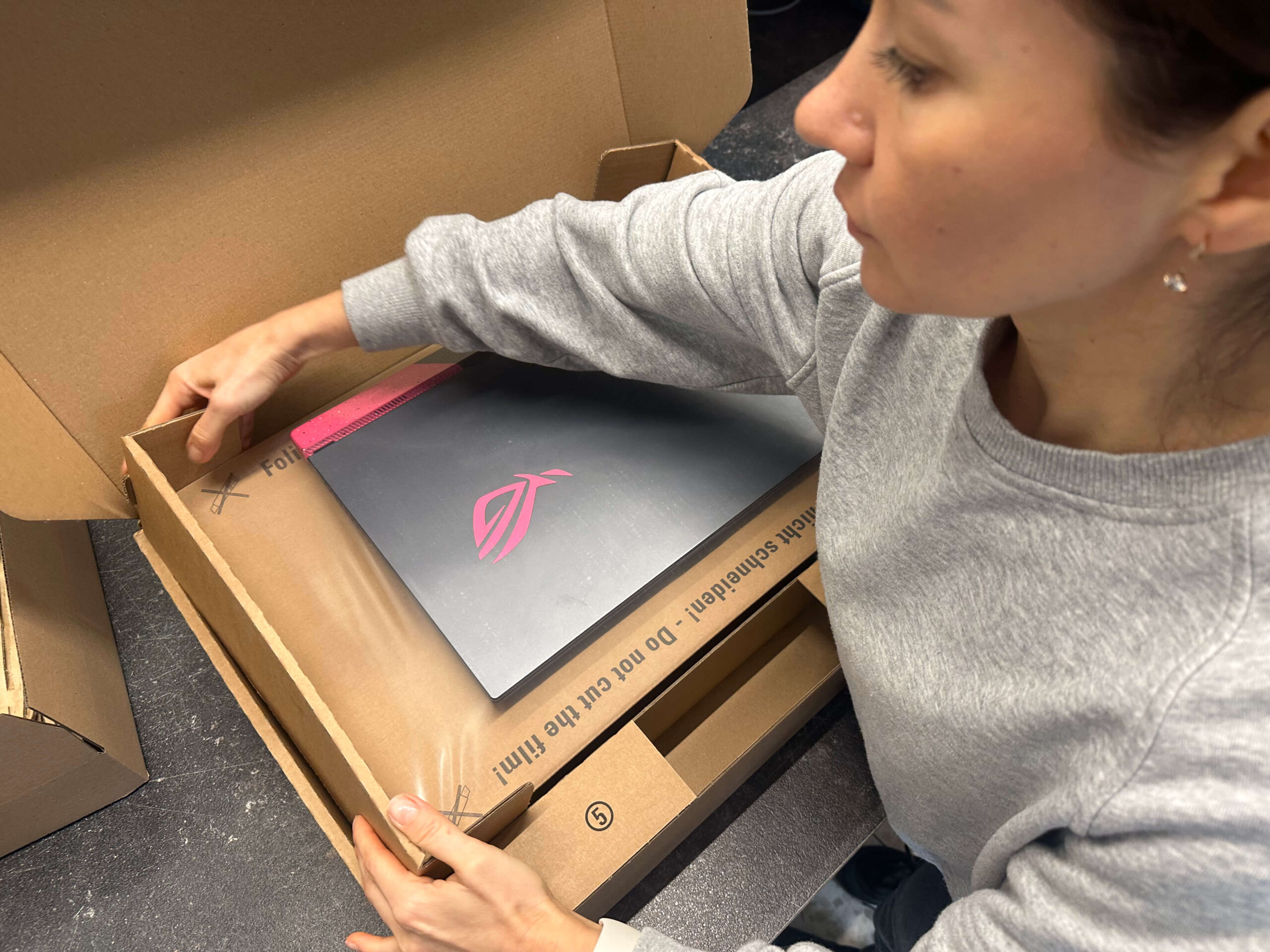

Why shipping only in the original packaging is not ideal
Many people think that the original boxes are the safest solution – but this is only partially true. These packagings are usually designed for pallet shipping from the manufacturer (e.g. from China to Europe).
For individual shipments, the protective layer of the collective packaging is often missing.
Therefore:
- The original packaging alone is not enough – it must also be repackaged and padded to compensate for impacts and drops.
Original packaging – usually not sufficient
The manufacturer’s original boxes are often not suitable for a second transport route, as they are only designed for short shipping distances. It is best to use a new, tested transport box with shock-absorbing padding.
Our notebook packaging 400 × 300 × 50 mm in the IPC-Computer shop
This stable special packaging was specially developed for shipping laptops.
Ideal transport protection "box in box system" from IPC
IPC-Computer always ships your ordered accessories such as power supplies or cables separately in foil or in small inner boxes. In addition, the inner boxes are packed in a larger, padded box. The device is thus doubly protected and can now be optimally sent to you. The same applies, of course, to the repaired notebooks, AIO, etc…!
Accessories and inner packaging
- Always pack accessories such as power supplies or cables separately in foil or small boxes.
- An inner box for the notebook is ideal, which is additionally placed in a larger, padded box – this provides double protection for the device.
Close and label the box
- Securely glue several times with strong parcel tape.
- Clearly label: “Caution – sensitive electronics”, “Do not throw”.
- Remove old labels completely.
Conclusion
Transport damage is avoidable – with a little preparation and the right packaging.
Stick to the basic rules: sufficient padding, stable outer packaging, separately packed accessories.
The original packaging alone is not sufficient, as it is not designed for individual shipping.
And if you don’t have suitable packaging at hand, simply order an approved notebook packaging directly from IPC-Computer – so that your device arrives safely, undamaged and insured.